Your cart
Your cart is empty
Continue shopping
Drawer menu
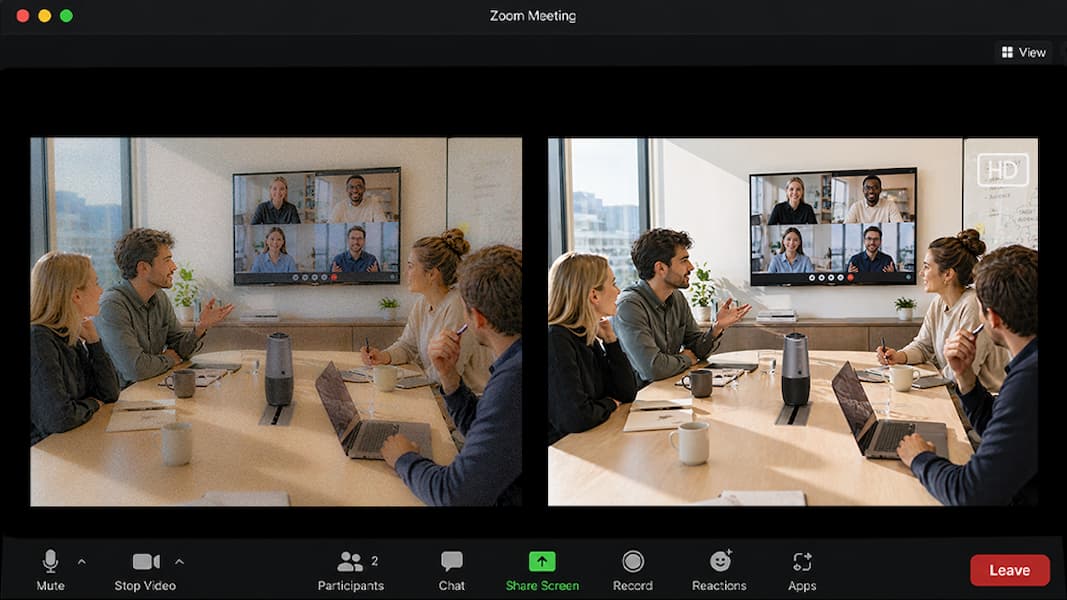
Improving video quality on Google Meet and Zoom is a common troubleshooting issue because both platforms rely heavily on the same factors: internet stability, device performance, lighting, and camera setup. While the apps handle video differently in terms of compression and optimization, poor video quality usually comes from setup limitations rather than the platform itself.
This guide breaks down practical ways to improve video quality across both tools so meetings stay clear, stable, and professional.

A stable connection ensures consistent video transmission across both platforms.
What to do:
Unstable internet often causes lag, resolution drops, or frozen video. For reference, Zoom's official bandwidth guidance recommends at least 1.2 Mbps up/down for 720p HD on 1:1 calls, rising to 2.6 Mbps up / 1.8 Mbps down for 720p group calls, and 3.8 Mbps up / 3.0 Mbps down for full 1080p group video.
Default settings often limit video quality to maintain stability.
What to do:
This allows the best possible clarity when bandwidth allows. Note that 1080p sending isn't available on every Google Workspace plan, and isn't supported at all in Firefox or Safari.
Lighting affects clarity more than most camera settings.
What to do:
Good lighting improves visibility even with basic webcams.
Built-in webcams often limit sharpness and detail.
What to do:
This improves image clarity and stability in all conditions. The right camera features, not just megapixel count, determine whether your video looks sharp or soft on a call, and laptop cameras in particular have specific performance quirks worth knowing before you upgrade.
Your device handles video processing in real time.
What to do:
A lighter system load helps prevent lag and frame drops.
Framing affects how clear and professional you appear.
What to do:
Proper positioning improves visual consistency.
Bandwidth is shared across all devices on your network.
Avoid during meetings:
This helps maintain stable video quality throughout the call.
Different meetings require different setups.
In group settings, standard webcams may struggle with coverage and consistency, which is why some teams use integrated solutions like Coolpo PANA for wider video capture and room audio coverage. Larger internal meetings raise the bar even further, since a room full of people watching a shared screen makes video clarity part of how the whole meeting gets judged.
Adjusting your setup based on meeting type improves overall communication quality.
While both platforms rely on similar conditions, they perform differently based on how they are optimized.
Zoom works best when:
It performs more consistently when given full system access.
Google Meet works best when:
Performance depends heavily on browser efficiency.
For fast improvements before a call, focus on adjustments that have immediate impact and don't require new hardware:
These small, real-time adjustments can improve video clarity without changing your full setup or buying new hardware.
Improving video quality on Google Meet or Zoom is about optimizing your entire setup, from internet and lighting to hardware and device performance. When these elements are aligned, your video becomes clearer, more stable, and more professional across any meeting environment. Video quality is just one piece of a bigger productivity puzzle for teams running client-facing calls day to day.
Better meetings start with better gear. See how Coolpo AI conferencing keeps remote and in-room teams perfectly clear.


