
How to Improve Video Quality on Google Meet or Zoom?
Yes, video quality on both Google Meet and Zoom can be improved, and in most cases the platform isn't the problem. The biggest gains come from a stable internet connection, better lighting, correct camera positioning, and enabling each platform's HD settings. Zoom needs at least 1.2 Mbps for 720p and 3.8 Mbps upload for 1080p group video; Google Meet lets you choose between 1080p, 720p, and 360p depending on your device and connection. Fix these basics first before assuming you need new hardware.
Improving video quality on Google Meet and Zoom is a common troubleshooting issue because both platforms rely heavily on the same factors: internet stability, device performance, lighting, and camera setup. While the apps handle video differently in terms of compression and optimization, poor video quality usually comes from setup limitations rather than the platform itself.
This guide breaks down practical ways to improve video quality across both tools so meetings stay clear, stable, and professional.
%20(3).jpg)
Use a Stable Internet Connection
A stable connection ensures consistent video transmission across both platforms.
What to do:
- Use wired (Ethernet) connection if possible
- Avoid downloads or streaming during calls
- Test connection before meetings
Unstable internet often causes lag, resolution drops, or frozen video. For reference, Zoom's official bandwidth guidance recommends at least 1.2 Mbps up/down for 720p HD on 1:1 calls, rising to 2.6 Mbps up / 1.8 Mbps down for 720p group calls, and 3.8 Mbps up / 3.0 Mbps down for full 1080p group video.
Enable HD Video Settings
Default settings often limit video quality to maintain stability.
What to do:
- Enable HD in Zoom settings
- Set high resolution in Google Meet's video settings, choosing between 1080p, 720p, or 360p depending on your device and connection
This allows the best possible clarity when bandwidth allows. Note that 1080p sending isn't available on every Google Workspace plan, and isn't supported at all in Firefox or Safari.
Improve Lighting
Lighting affects clarity more than most camera settings.
What to do:
- Face natural or soft light
- Avoid strong backlighting
- Keep lighting consistent throughout the call
Good lighting improves visibility even with basic webcams.
Use a Better Camera
Built-in webcams often limit sharpness and detail.
What to do:
- Upgrade to an external HD webcam
- Choose cameras with better low-light performance
- Position camera at eye level
This improves image clarity and stability in all conditions. The right camera features, not just megapixel count, determine whether your video looks sharp or soft on a call, and [laptop cameras in particular have specific performance quirks worth knowing before you upgrade -> /post/what-device-and-camera-features-can-enhance-camera-performance-on-laptops].
Optimize Device Performance
Your device handles video processing in real time.
What to do:
- Close unused applications
- Keep system updated
- Restart device before important meetings
A lighter system load helps prevent lag and frame drops.
Fix Camera Positioning
Framing affects how clear and professional you appear.
What to do:
- Keep camera at eye level
- Avoid extreme angles
- Keep framing stable
Proper positioning improves visual consistency.
Reduce Network Load During Calls
Bandwidth is shared across all devices on your network.
Avoid during meetings:
- Streaming videos
- Large downloads or uploads
- Multiple devices heavily using Wi-Fi
This helps maintain stable video quality throughout the call.
Match Setup to Meeting Type
Different meetings require different setups.
1-on-1 Meetings
- Basic webcam setup is usually enough
- Simple lighting is sufficient
- Focus is on individual framing
Group / Hybrid Meetings
- Wider framing is needed for multiple participants
- Stronger lighting improves room visibility
- Audio and video need broader coverage
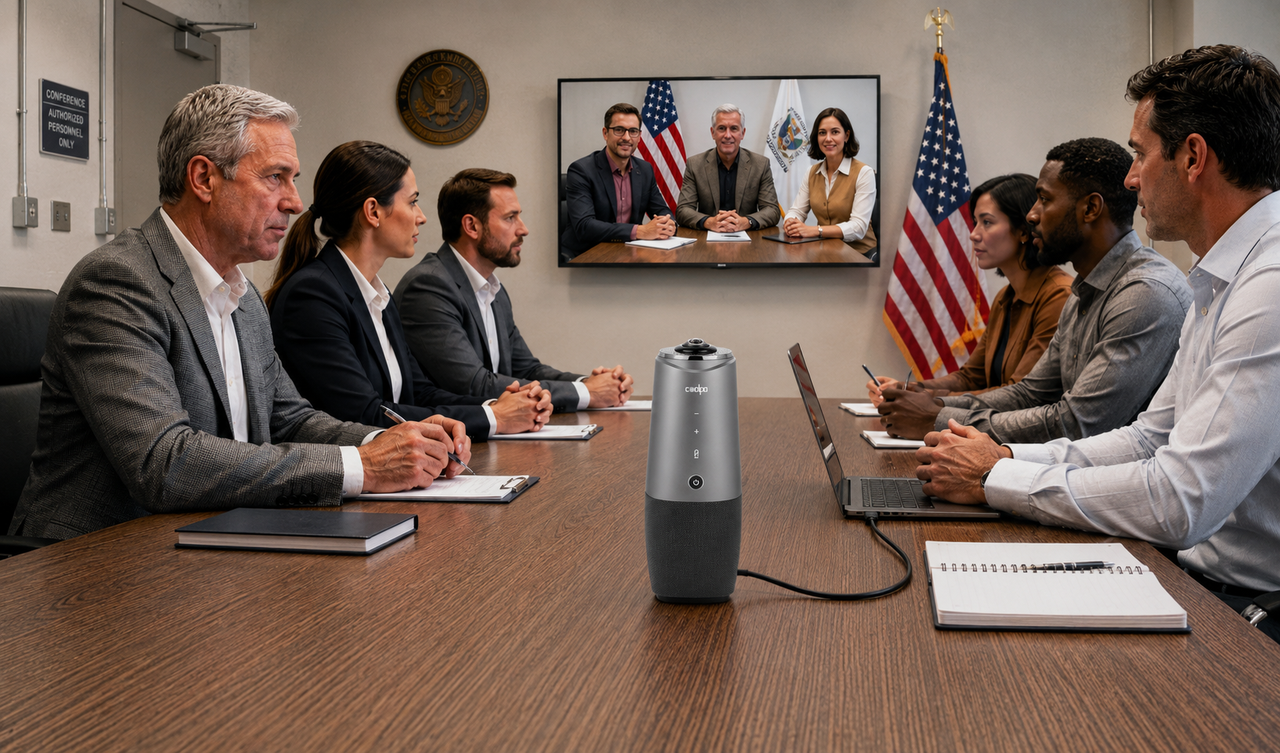
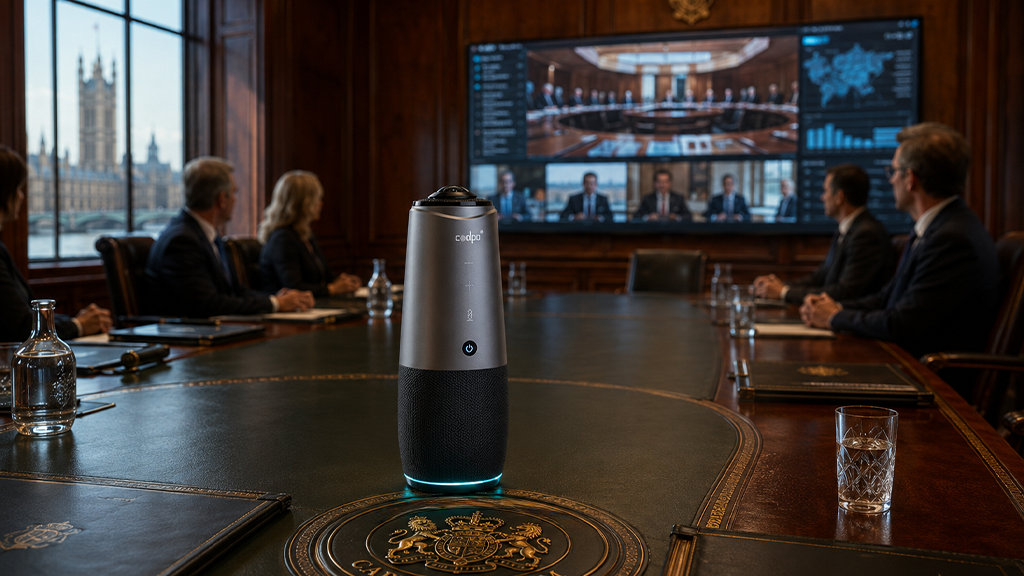
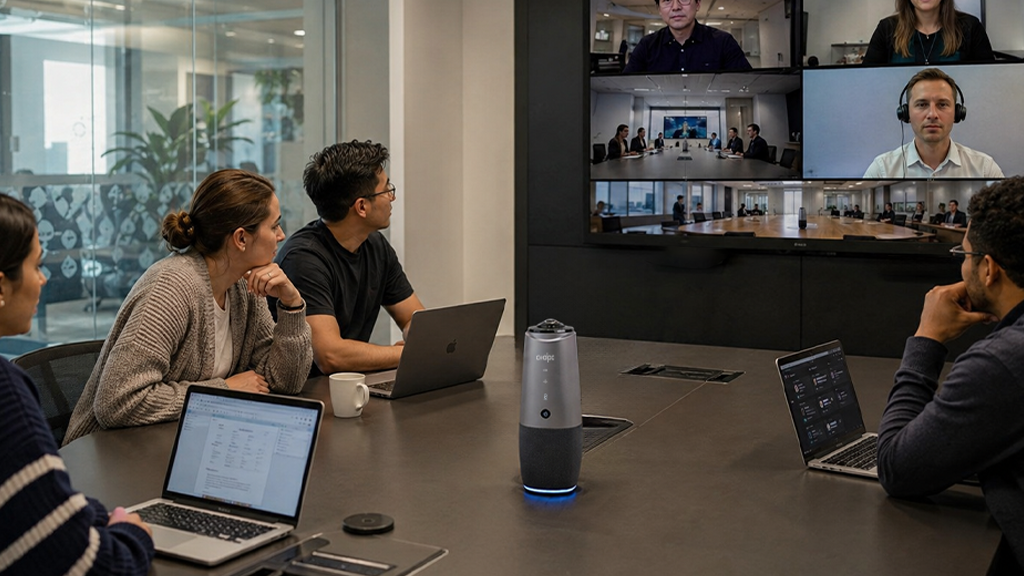
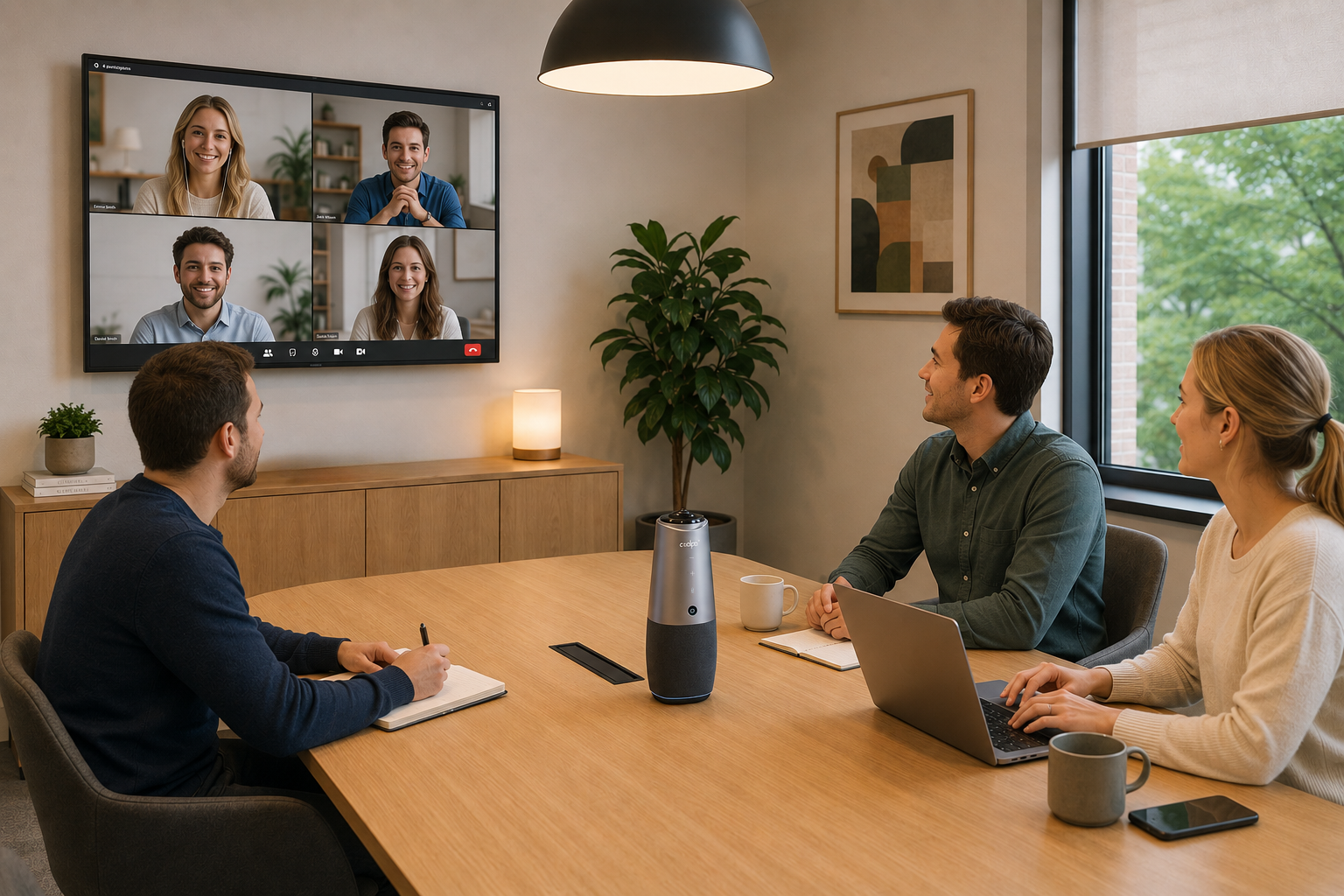
In group settings, standard webcams may struggle with coverage and consistency, which is why some teams use integrated solutions like Coolpo PANA for wider video capture and room audio coverage. Larger internal meetings raise the bar even further, since [a room full of people watching a shared screen makes video clarity part of how the whole meeting gets judged -> /post/how-to-host-successful-all-hands-meetings-and-company-decks].
Adjusting your setup based on meeting type improves overall communication quality.
Platform-Specific Improvements
While both platforms rely on similar conditions, they perform differently based on how they are optimized.
Zoom
Zoom works best when:
- Using the desktop app instead of browser
- Keeping HD and performance settings enabled
- Disabling unnecessary visual effects
- Keeping the app updated
It performs more consistently when given full system access.
Google Meet
Google Meet works best when:
- Using Chrome or Edge browser
- Closing unused tabs
- Disabling heavy extensions
- Avoiding multiple browser windows
Performance depends heavily on browser efficiency.
Quick Tips to Improve Video Quality Instantly
For fast improvements before a call, focus on adjustments that have immediate impact and don't require new hardware:
- Join a few minutes early to check your camera preview, and adjust lighting or framing based on what you see
- Position yourself facing a light source
- Move closer to your router, or switch to a wired connection if using Wi-Fi
- Pause other devices using the same network during the call
- Clean your camera lens (often overlooked, but it affects clarity immediately)
- Restart your device if performance feels slow
- Keep your background simple so your camera can focus better
These small, real-time adjustments can improve video clarity without changing your full setup or buying new hardware.
Conclusion
Improving video quality on Google Meet or Zoom is about optimizing your entire setup, from internet and lighting to hardware and device performance. When these elements are aligned, your video becomes clearer, more stable, and more professional across any meeting environment. Video quality is just one piece of a [bigger productivity puzzle for teams running client-facing calls day to day -> /post/productivity-solutions-for-small-business-sales-meetings].
Better meetings start with better gear. See how Coolpo AI conferencing keeps remote and in-room teams perfectly clear.
1. Is there a way to improve the video quality on Google Meet or Zoom?
Yes. In most cases, poor video quality comes from setup rather than the platform itself. Improving your internet connection, lighting, camera positioning, and enabling each platform's HD settings resolves the majority of video quality issues on both Zoom and Google Meet.
2. What is the minimum internet speed needed for HD video on Zoom?
Zoom recommends at least 1.2 Mbps up/down for 720p HD on 1:1 calls, and 3.8 Mbps upload / 3.0 Mbps download for full 1080p HD on group calls, per Zoom's official system requirements.
3. Why does my video look blurry even with a good camera?
Usually lighting, not the camera, is the cause. Weak or backlit lighting makes even high-end cameras look soft or grainy, while consistent, forward-facing light improves clarity on basic webcams too.
4. Can I get 1080p video on Google Meet?
Only on certain devices and Google Workspace plans, and only in Chrome or Edge. Google Meet's 1080p sending isn't supported in Firefox or Safari, and receiving 1080p is available more broadly than sending it.
5. Does closing other apps actually improve video call quality?
Yes. Both Zoom and Google Meet process video in real time, so background apps competing for CPU or bandwidth can cause lag and frame drops, especially on laptops without dedicated graphics hardware.
Recent blogs

.png)

Reliable
Innovation
Touch


